> For the complete documentation index, see [llms.txt](https://docs.natoma.ai/llms.txt). Markdown versions of documentation pages are available by appending `.md` to page URLs; this page is available as [Markdown](https://docs.natoma.ai/connect-to-ai/getting-started/create-connection.md).

# Create a Connection

Create a personal connection

Once an app has been enabled for personal connections, you can create your own connection to use with AI.

## Step 1: Go to the My Connections page

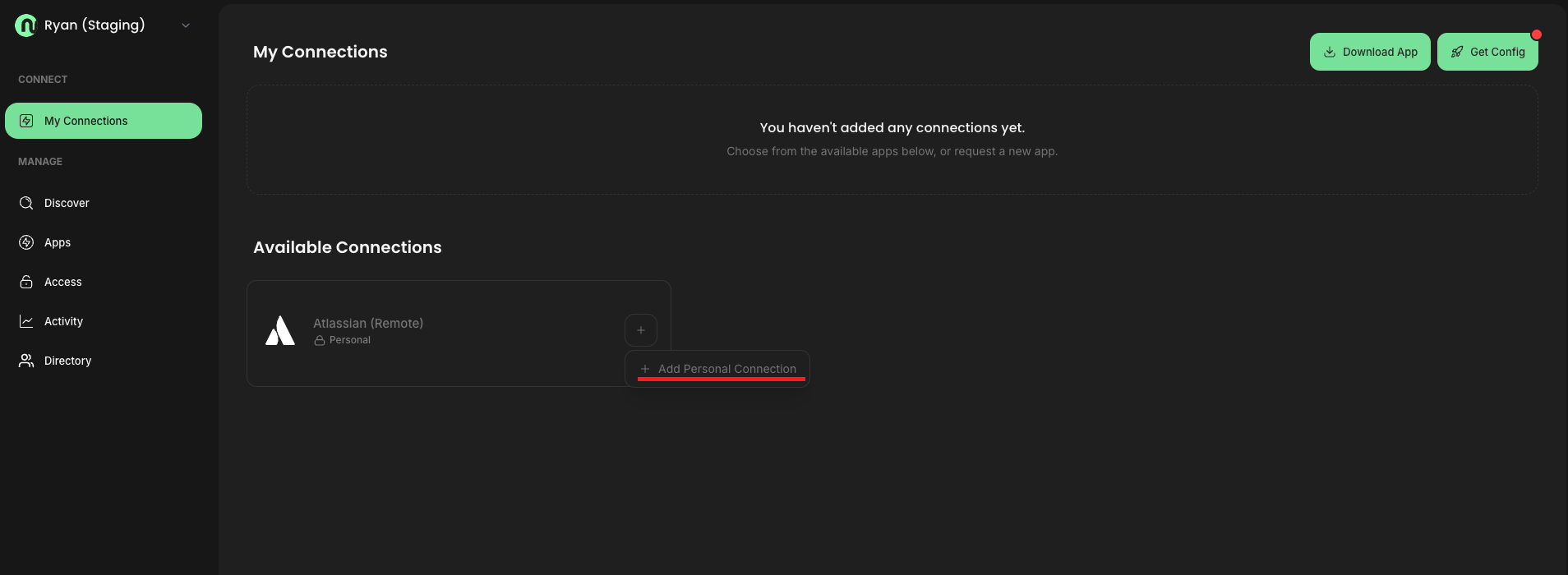
Navigate to the <mark style="color:$primary;">My Connections</mark> page and click to add a personal connection for the app you want to use.

<figure><img src="https://3781707856-files.gitbook.io/~/files/v0/b/gitbook-x-prod.appspot.com/o/spaces%2F89xcurNEGOdplgwwm3bd%2Fuploads%2Fgit-blob-489e1df01ad60e8679846a1e662ab6c8b346bc34%2Fimage.png?alt=media" alt=""><figcaption></figcaption></figure>

## Step 2: Authorize the connection

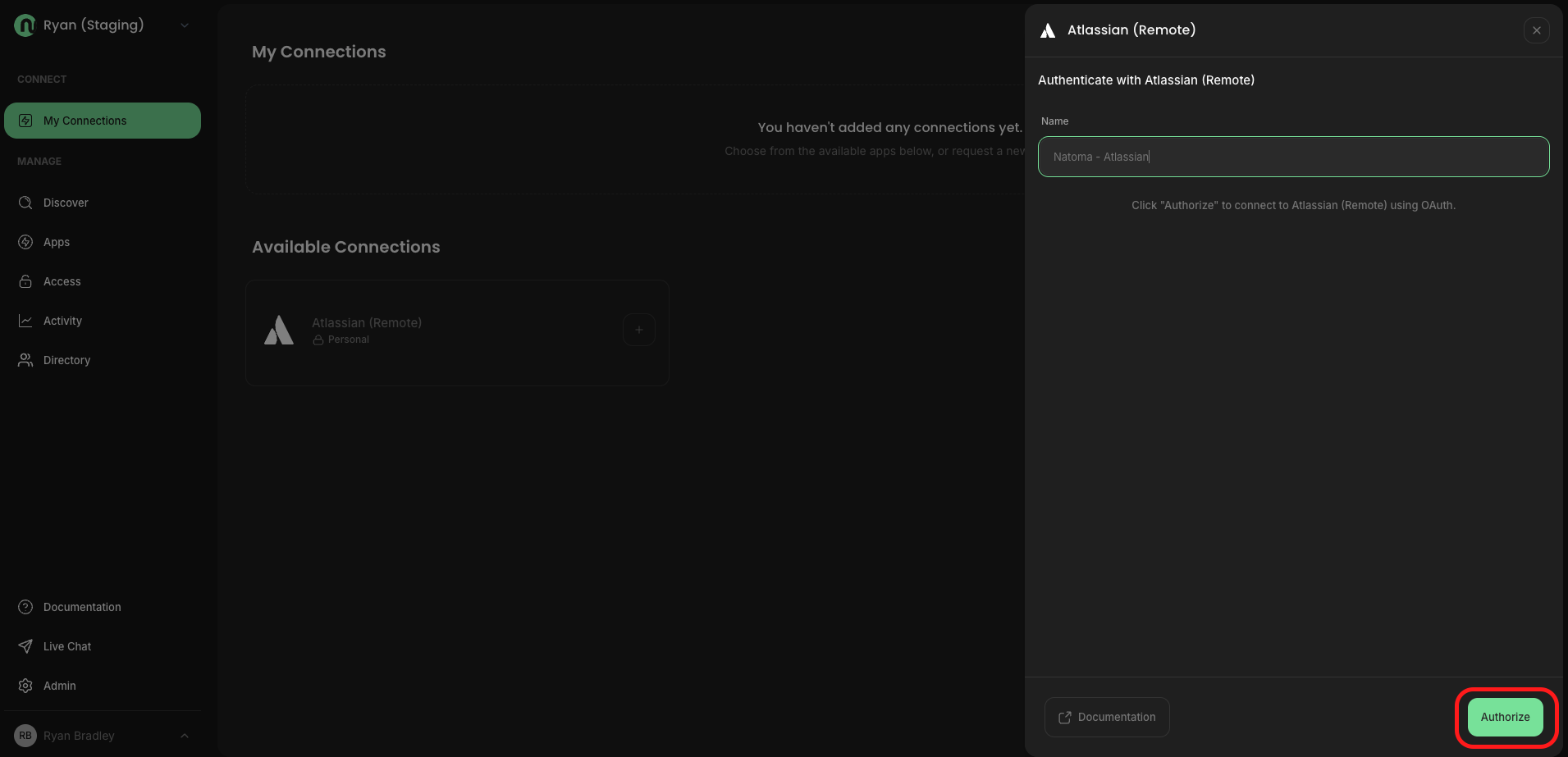
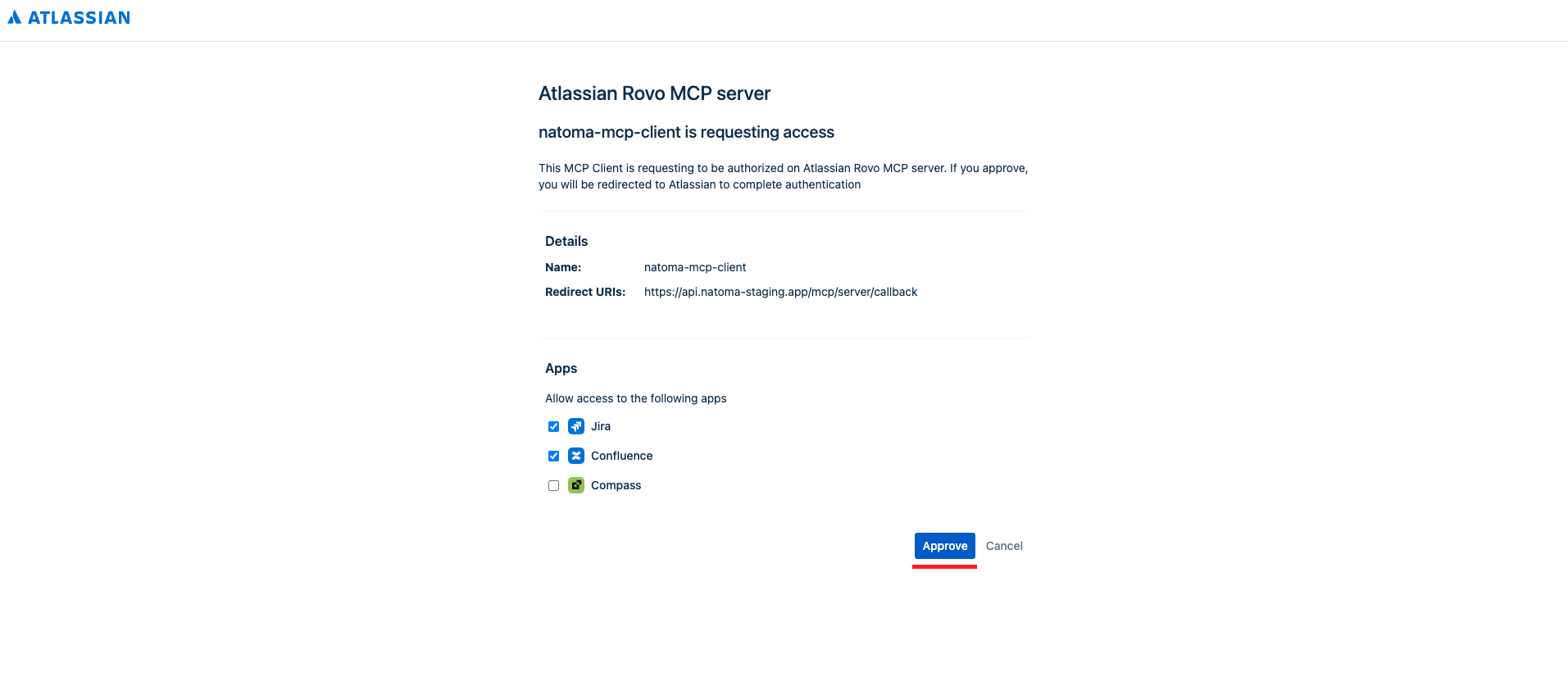
Follow the steps to authorize the connection. Depending on the app, this may require you to click an "Authorize" button or to enter credentials.

<figure><img src="https://3781707856-files.gitbook.io/~/files/v0/b/gitbook-x-prod.appspot.com/o/spaces%2F89xcurNEGOdplgwwm3bd%2Fuploads%2Fgit-blob-190b0adea9f9dba710624596d63aba06fa2320ae%2Fimage.png?alt=media" alt=""><figcaption></figcaption></figure>

<figure><img src="https://3781707856-files.gitbook.io/~/files/v0/b/gitbook-x-prod.appspot.com/o/spaces%2F89xcurNEGOdplgwwm3bd%2Fuploads%2Fgit-blob-e12ce3a354012c7498d07af770ec314859d7a37e%2Fimage.png?alt=media" alt=""><figcaption></figcaption></figure>

## Step 3: (Optional) Test your connection

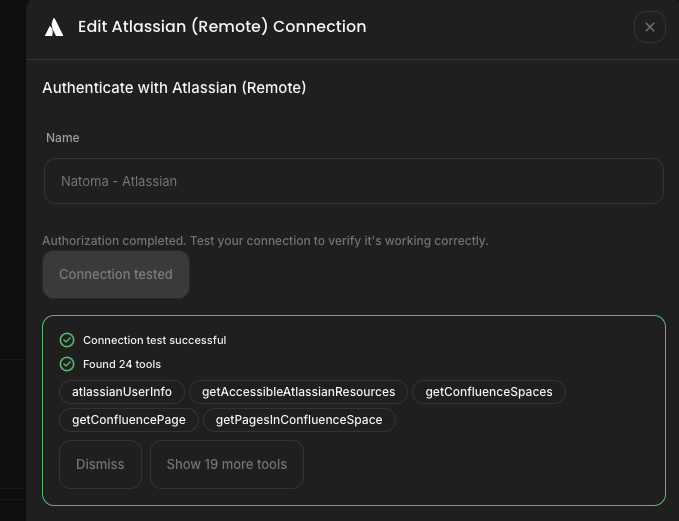
Click "Test connection" to validate that a successful connection was established with your app.

<figure><img src="https://3781707856-files.gitbook.io/~/files/v0/b/gitbook-x-prod.appspot.com/o/spaces%2F89xcurNEGOdplgwwm3bd%2Fuploads%2Fgit-blob-57029d374357d542f981e5fb65a919f86da6da49%2Fimage.png?alt=media" alt=""><figcaption></figcaption></figure>

## Next steps

Once your connection is created, you need to configure your AI client to use it. See [Configure Your Client](/connect-to-ai/getting-started/configure-client.md).