> For the complete documentation index, see [llms.txt](https://docs.natoma.ai/llms.txt). Markdown versions of documentation pages are available by appending `.md` to page URLs; this page is available as [Markdown](https://docs.natoma.ai/docs/enterprise/granular-access.md).
# Granular Access Control
Natoma's policy management capabilities give admins fine-grained control over how AI interacts with business applications. You can define which users can use specific tools, validate data passed to and from AI, and prevent excessive API usage.
## Policy Types
Natoma supports two types of granular policies that can be precisely targeted to specific users, tools, and contexts:
### Access Control
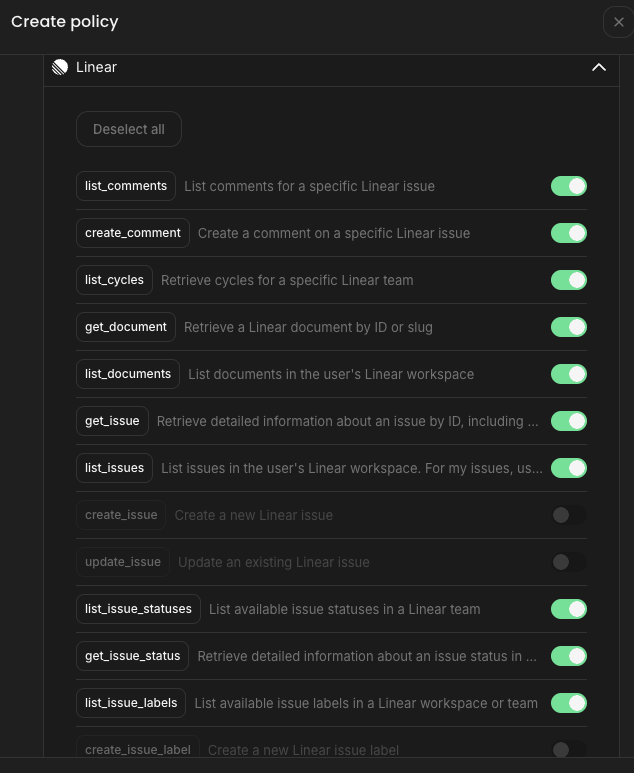
Control which tools users can delegate to AI. For example, you may want to prevent certain users from delegating write access to AI while still allowing read operations. Access policies specify which tools are allowed or blocked for specific users and applications.
### Content Validation
Validate and restrict data that AI can send or receive. Content validation policies allow you to:
* **Validate request arguments** - Inspect and restrict data that AI passes in tool call arguments
* **Validate responses** - Inspect and restrict data returned to AI in responses
This ensures sensitive information is not inadvertently shared with AI or that AI cannot pass inappropriate data to your applications.
## Policy Targeting
Natoma's policies can applied precisely in a given scenario based on multiple criteria:
### User
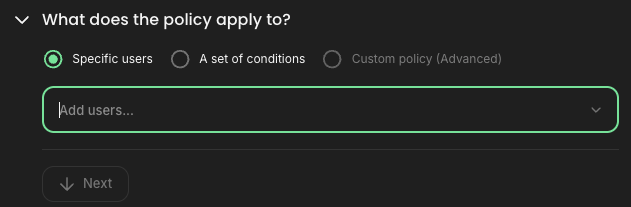
Apply policies to all users or specific subsets based on:
* **Natoma role** - Member, App Admin, or Admin
* **Identity provider groups** - Group memberships synced from Okta, Microsoft Entra, or other IdPs
* **Profile attributes** - Custom attributes associated with user profiles
### Resource
Apply policies to:
* **Specific tools** - Control access to either all tools or a subset of tools within an application
* **All connections** - Apply to both personal and managed connections
* **Specific connection types** - Target only personal connections or only managed connections
* **Individual managed connections** - Apply policies to specific shared connections
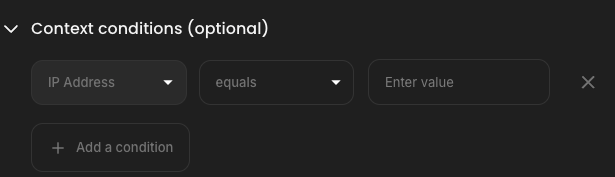
### Contextual conditions
Apply policies based on request context:
* **IP address ranges** - Require requests to originate from specific network locations
* **AI clients** - Restrict which AI tools (Cursor, Claude, ChatGPT, etc.) can invoke specific tools
## Creating a Policy
To create a policy, go to the **Access** page in Natoma and click `Add Policy`.
Configure your targeting criteria using the options described above:
1. **Select users** - Choose who the policy applies to
2. **Choose tools** - Specify which tools to allow or block
3. **Set connections** - Indicate which connections are affected
4. **Add conditions** (optional) - Apply contextual constraints like IP ranges or client restrictions
Click "Finish" to save and enable the policy. Until the first policy is created for an app, all tool calls will be allowed.
## Rate Limits
In addition to access and content validation policies, Natoma provides rate limiting to prevent AI from overwhelming applications with excessive requests. Rate limiting is particularly useful when AI hallucinates or enters loops, repeatedly calling the same tools and consuming scarce resources.
You can set limits on the number of requests allowed to an application within:
* A one-hour window
* A 24-hour window
Rate limits are applied per user per application and help protect your systems from runaway AI behavior.
## Policy Evaluation
When AI attempts to call a tool, Natoma evaluates all applicable policies based on:
1. The user making the request
2. The tool being invoked
3. The connection being used
4. The request context (IP, client, etc.)
If any applicable policy blocks the request, the tool call is denied. Content validation policies inspect and potentially modify or reject requests based on the data being passed. Rate limits are checked independently to ensure request volumes remain within configured thresholds.